Change of Name/Address/Email
Pursuant to A.R.S. 32-1435(A), a licensee shall promptly and in writing inform the board of the licensee's current residence address, office address and telephone number and of each change in residence address, office address or telephone number that may later occur. The Board also requests you provide an email address to receive Board correspondence.
Pursuant to A.R.S. 32-3226(A), the Board is required to list an address of record designated by the licensee that can be disclosed to the public. If you designate a residential address as the address of record, it may be disclosed to the public, unless you opt out of the disclosure. Please contact the Board at [email protected] to opt out of the disclosure.
"You can now use the Online Change of Address system by simply clicking the link above."
MD Portal Existing User Account Creation Instructions
If you already have a license with the Arizona Medical Board or the Arizona Board of Physician Assistants, you will need to create an account on our agency portal. We use multi-factor authentication for security purposes hence you will need an email address and a phone number to complete our authentication process. Please make sure to use the email address registered with our agency. If you do not remember the email address you registered with us, please call the agency.
Please follow the steps below.
Step 1: Click on Sign up now.
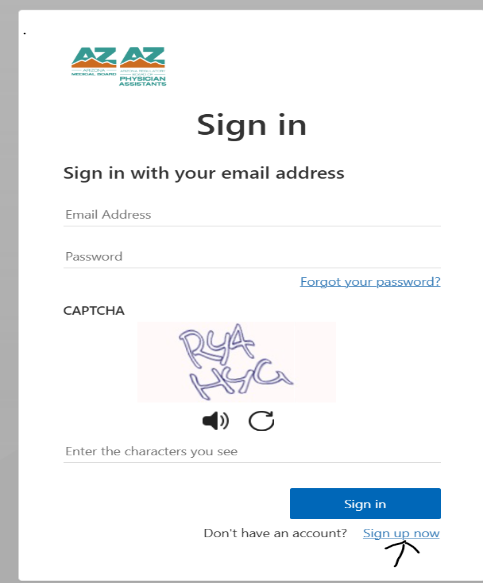
Step 2:
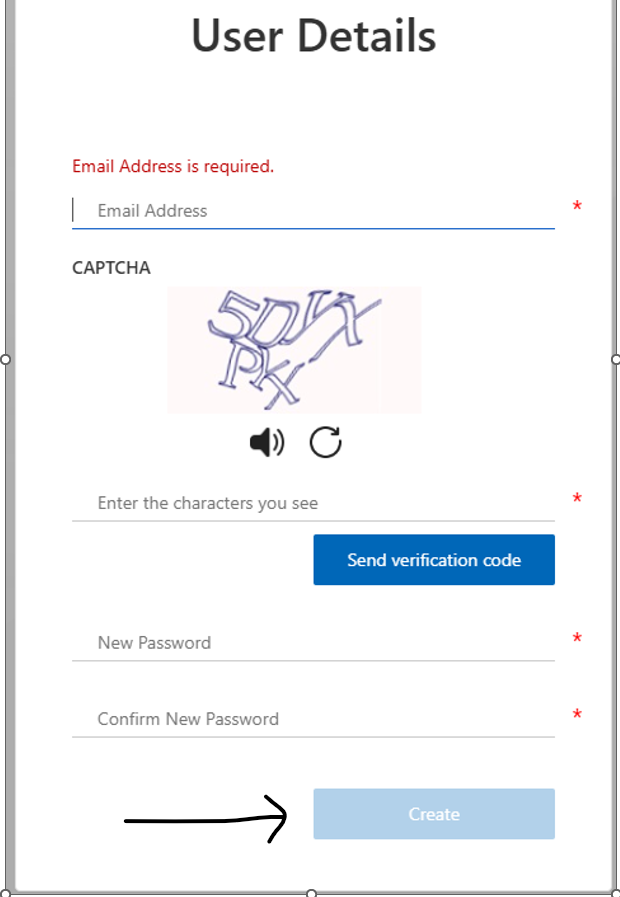
a) You will see this screen. Enter the email address registered with our agency , which will also serve as your username for this account. (Please ensure correctness since the verification code will be sent to this email address)

b) Enter the captcha text displayed. Click on the Send verification code button
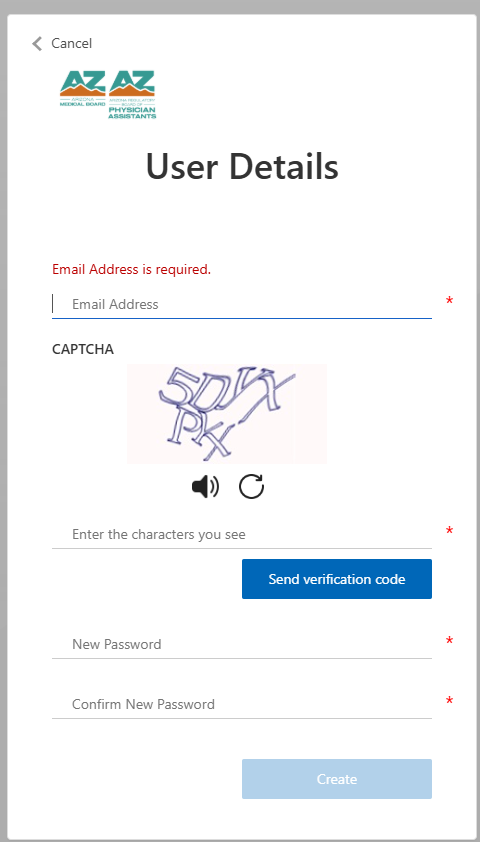
Step 3:
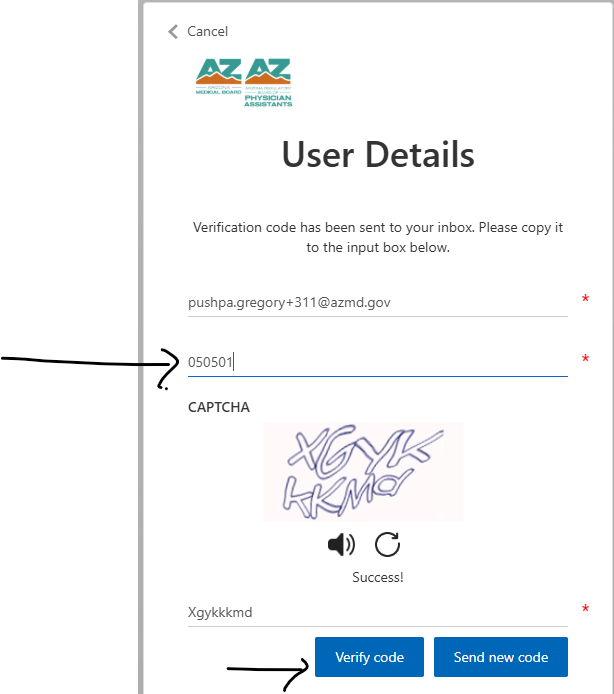
a) You will receive a code in your inbox.
b) Enter the received code into this box shown below and click the Verify Code button.
c) if the correct code is entered you will see a message like this:
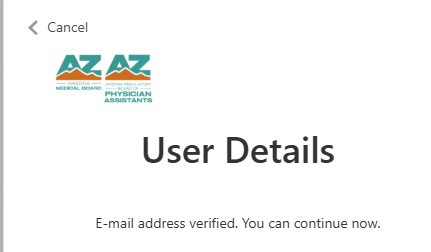
d) You will now enter a password (Should be at least 10 characters including a number and a special character like ! or #) in the ‘New Password’ and ‘Confirm New Password section.’
e) Click on Create.
 >
>
Step 4:
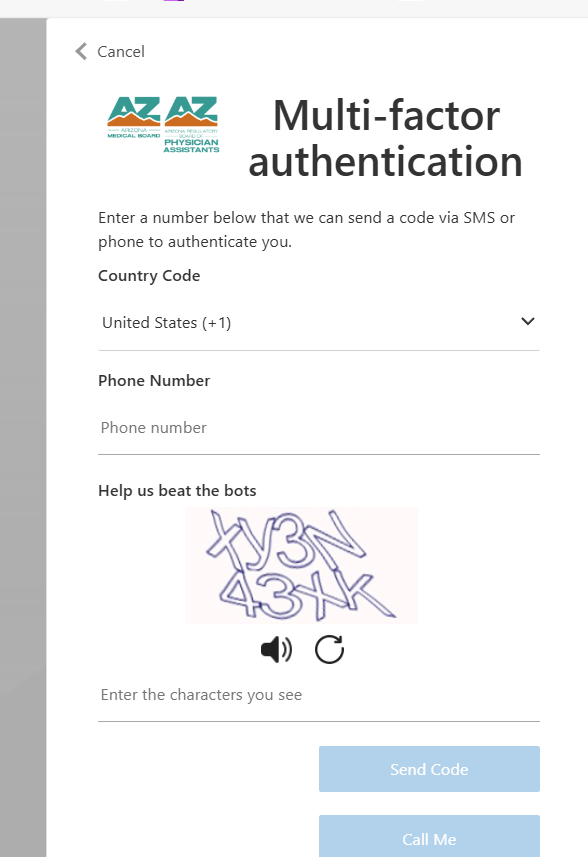
a) You will now see this screen to set up your MFA
b) Enter your phone number where you can receive text messages.
c) Enter the captcha code and click on Send Code, or Call Me.
d) Based on your choice you will receive a verification code.
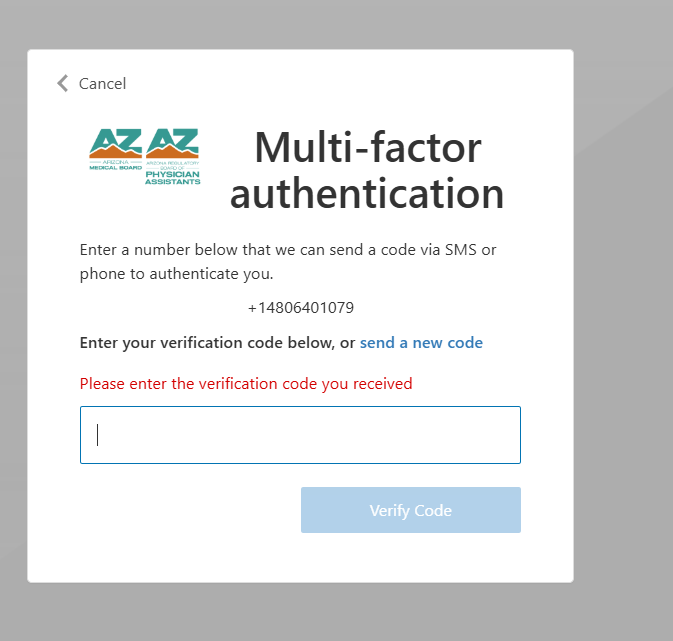
You will now enter the verification code received in the screen shown below and click on Verify Code.
Step 5:
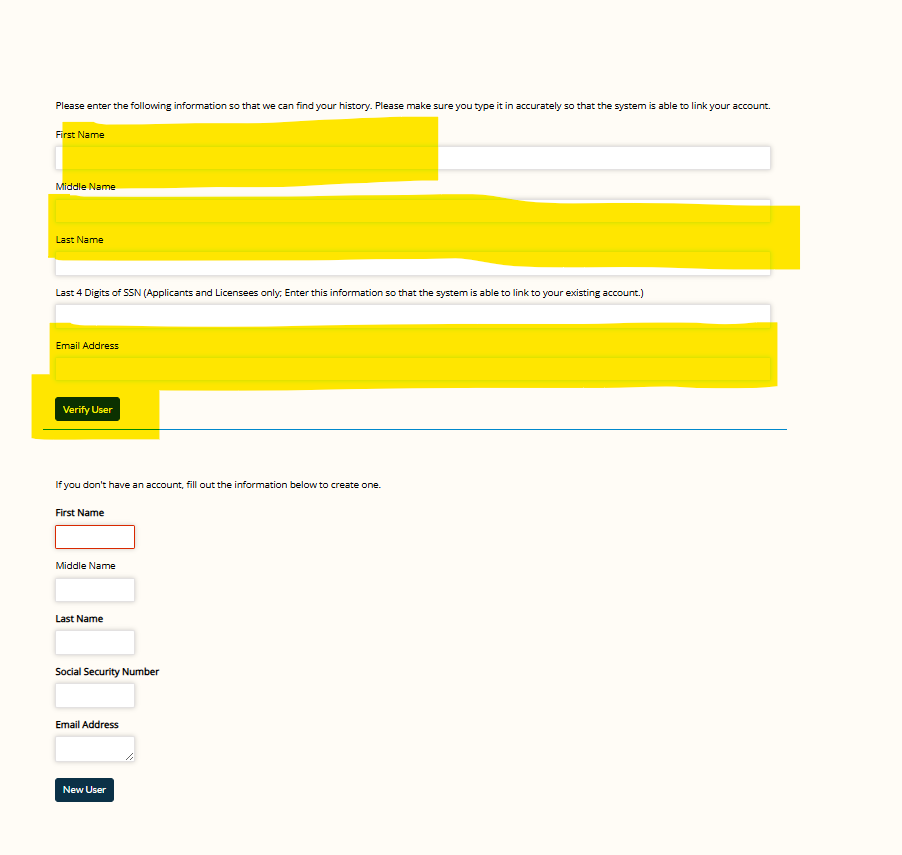
You will now enter your personal information in the screen below in the highlighted area and click on Verify User. Please ensure that all information is accurate so that we can match this account to your existing record in the database.
Step 6:
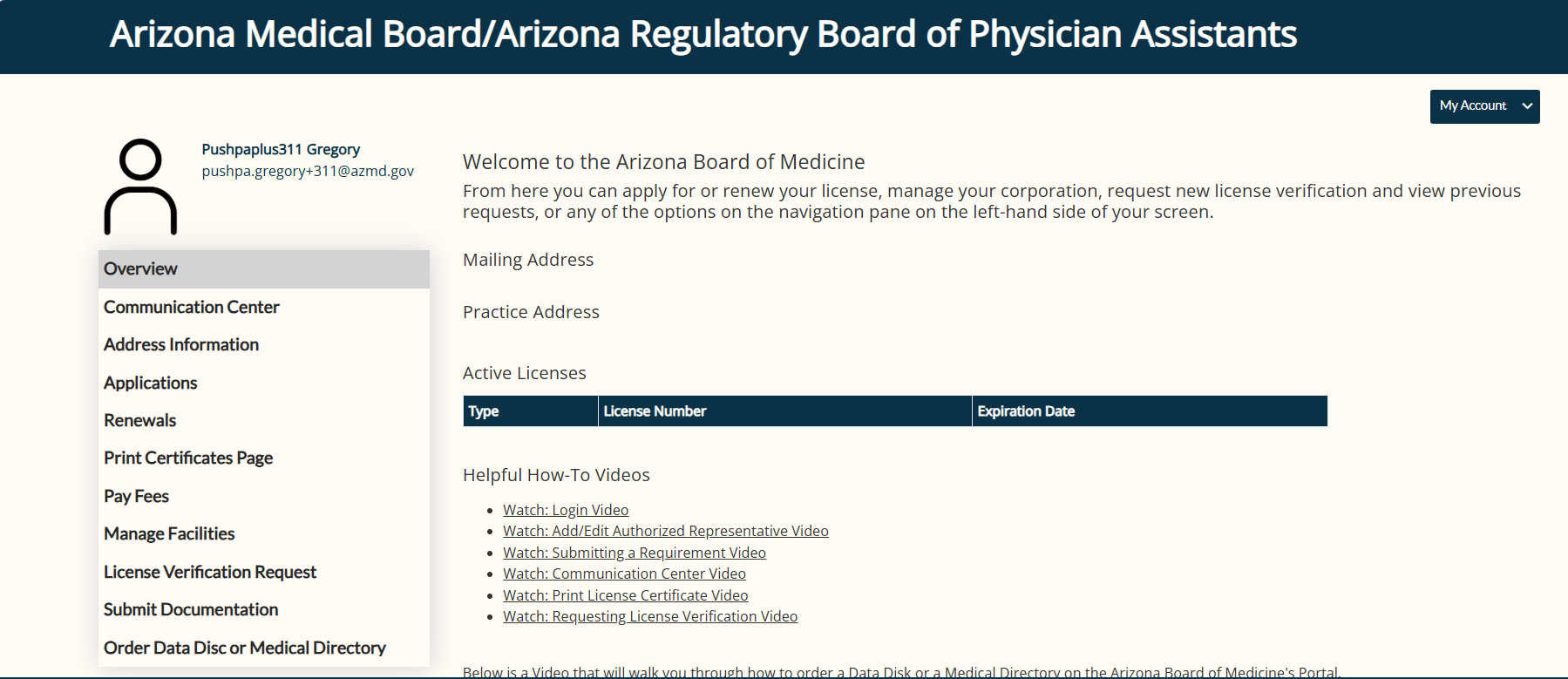
You will now see this screen and can proceed with your renewal or updates.
There are no fees available
Currently no relevant statute(s)
There are no relevant FAQs currently available
Currently no relevant Notice(s)